

Your MINI POS shop, on every counter PC
Sell, check stock, print receipts and see every report from Windows PCs, connected to your shop's MINI POS phone over your own Wi-Fi. No internet, no cloud.

Free download · Windows 10 (version 1903 or later) and Windows 11 · One licence key per PC
Everything your counter needs
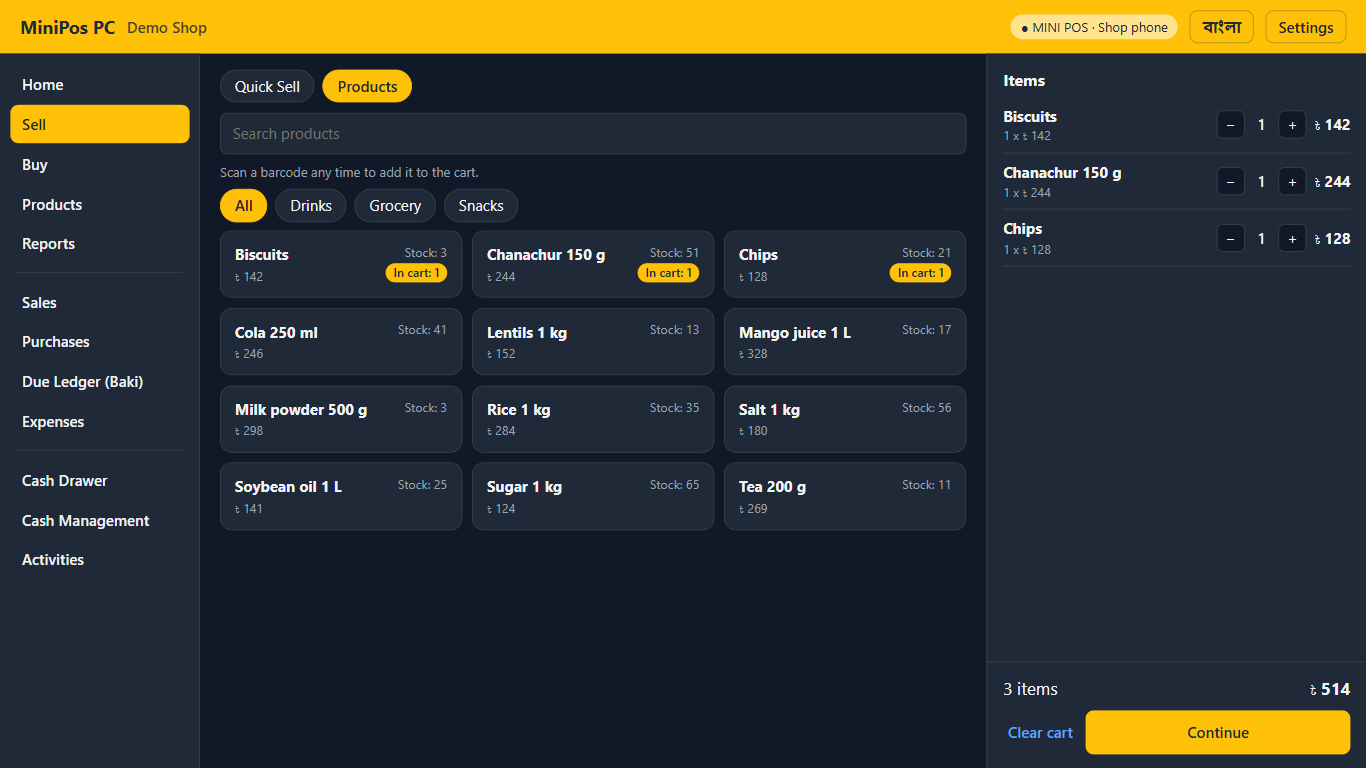
MiniPos PC works with the MINI POS app you already use on your phone. Every sale made on a PC is recorded on the phone instantly, exactly as if it was made there.
Fast selling
Sell with products or Quick Sell, take cash or due (Baki), and print or save the receipt.
Barcode scanner
Any USB barcode scanner works. Scan to add items to the cart.
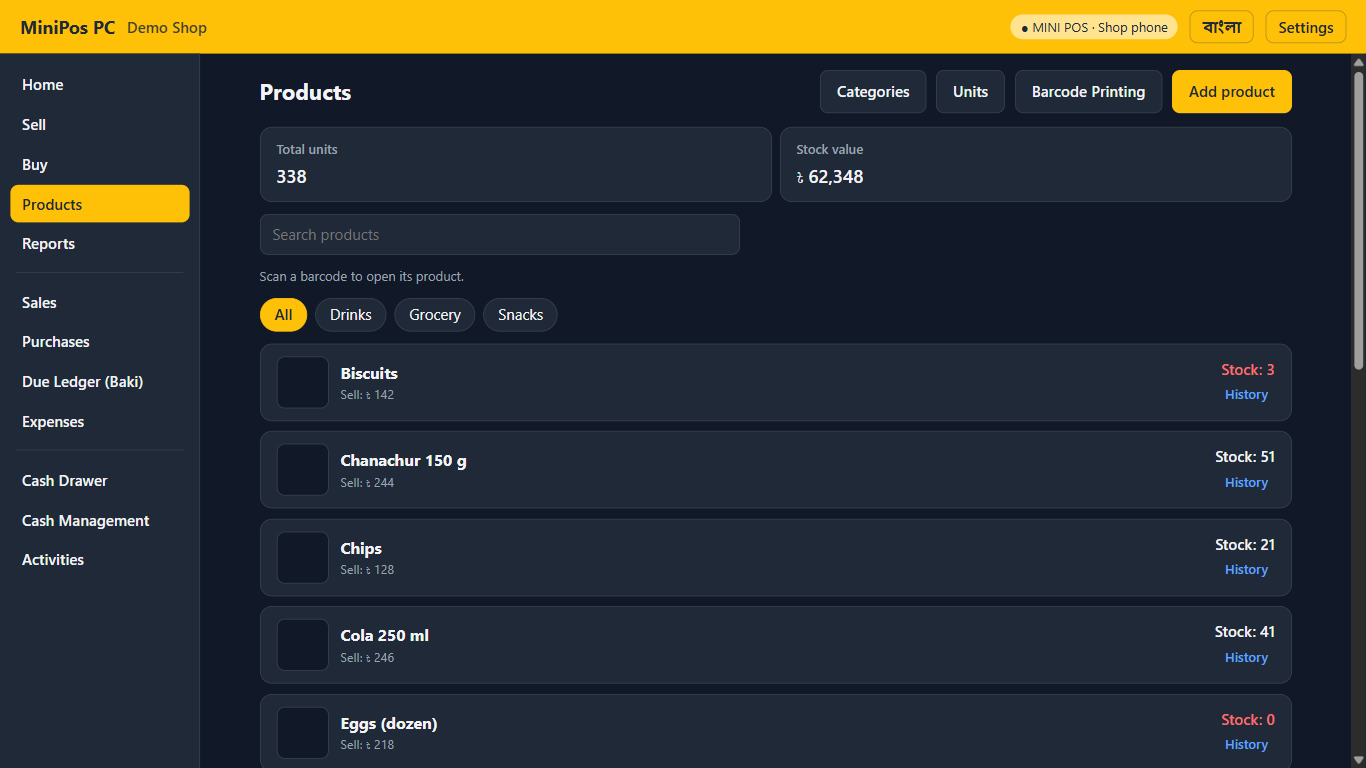
Products & stock
Look up products and stock, buy stock from suppliers and adjust stock.
Dues (Baki)
Customers and suppliers, dues and payments, and statements per party.
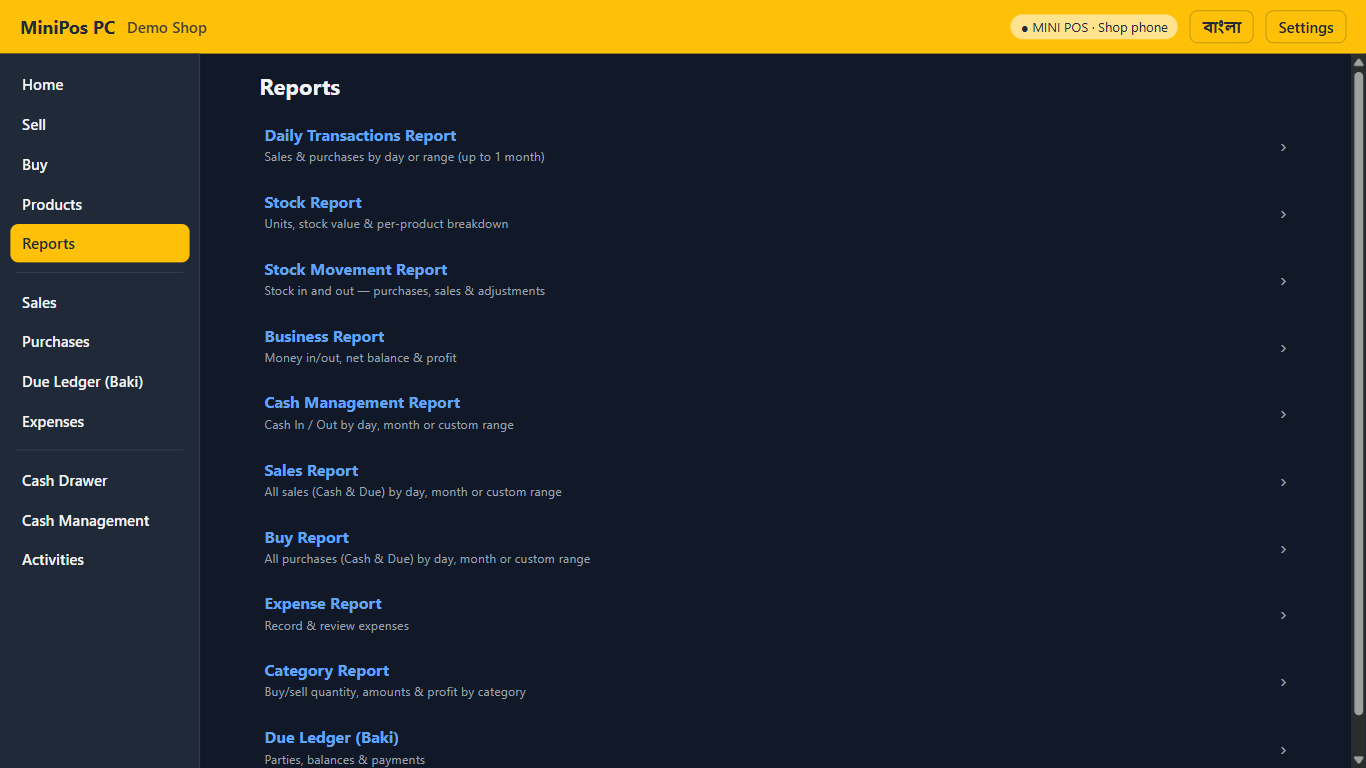
All reports
Daily, stock, business, cash, sales, buy and category reports, exported as PDF.
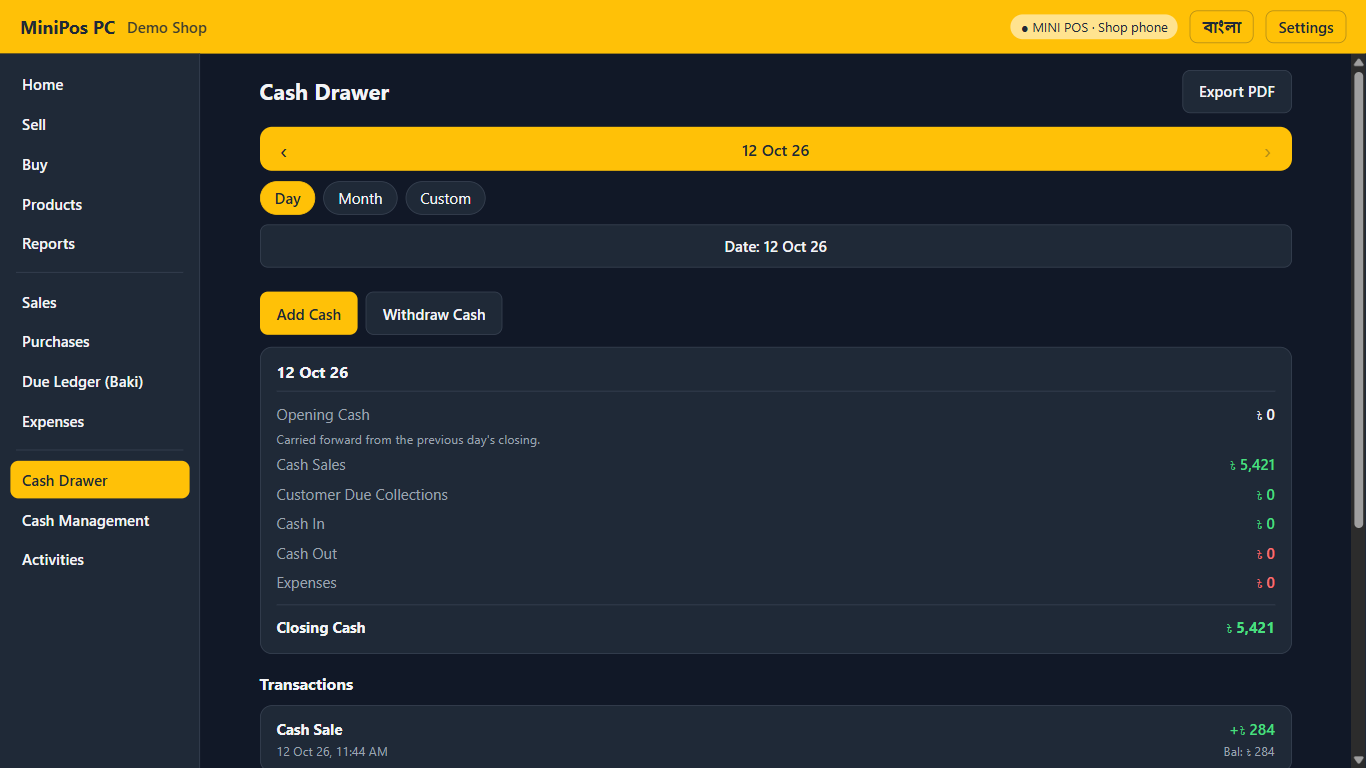
Cash drawer
Cash in and out, expenses and the cash drawer by day or month.
Up to 10 PCs
Every counter PC sells at the same time, all kept in step with the phone.
English & বাংলা
Switch the language on each PC with one click.
Set up in about 10 minutes
The phone stays the heart of your shop. The PCs connect to it directly, with an encrypted connection.
On the phone
Open MINI POS (version 2.30 or later), go to Settings → PC connection, switch it on and tap Add PC. The phone shows a code.
On the PC
Install MiniPos PC from the Microsoft Store, open it and activate your licence key (see below).
Connect
Pick your phone, type the code and approve the PC on the phone. The PC copies your shop's data and is ready to sell.
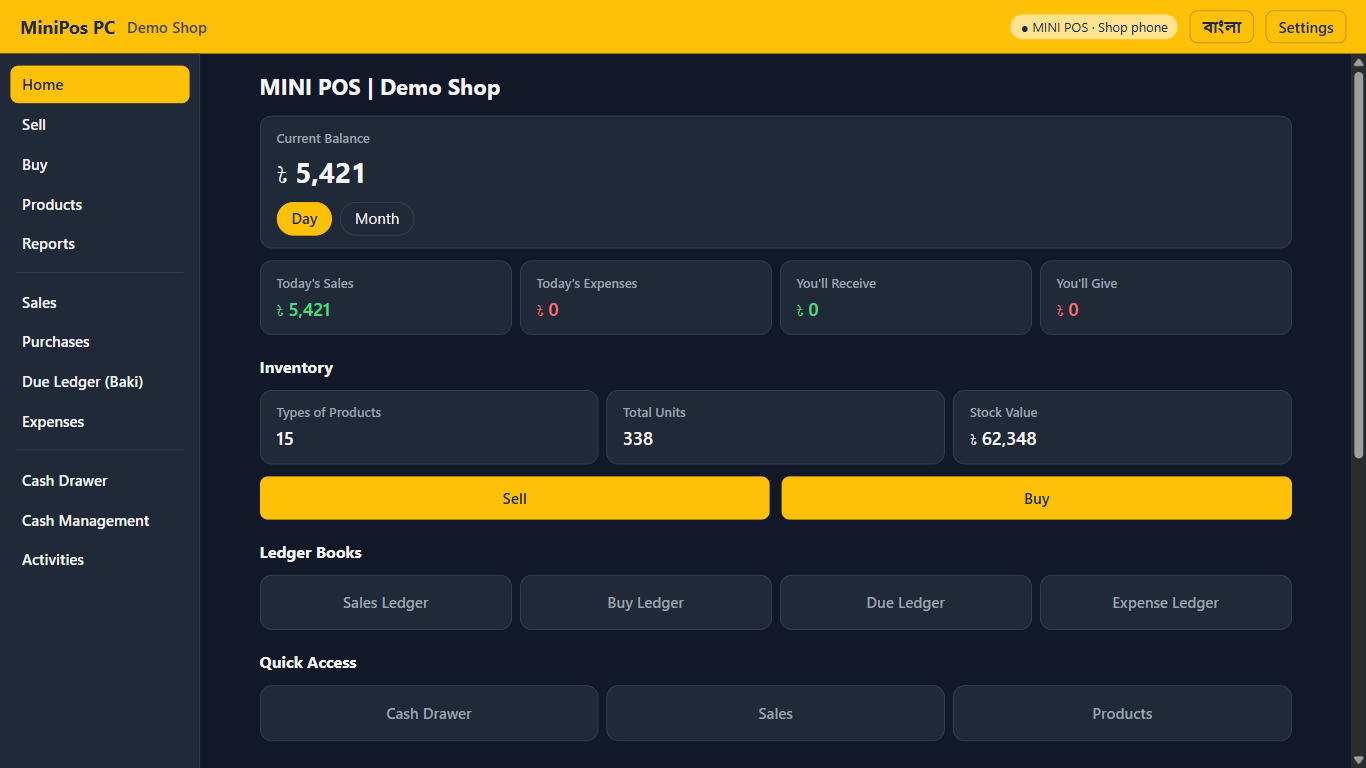
See it in action
The same MINI POS you know, on a big screen.
Get a licence key
MiniPos PC is free to download. Each PC needs its own licence key, made for that PC.
- Install MiniPos PC and open it. The first screen shows this PC's Device ID (it looks like
MPOSPC-XXXX-XXXX-XXXX-XXXX). - Click Copy Device ID and send it to us by email or WhatsApp.
- We send you the licence key for that PC.
- Paste the key into MiniPos PC and click Activate. No internet is needed for this step.
A key belongs to one PC. Reinstalling MiniPos PC keeps the same Device ID, but a new PC or a fresh Windows installation needs a new key.
Send us your Device ID
We'll reply with the price, then send your licence key.
Email: contact@jahirulislam.info WhatsAppWhat you need
- The MINI POS app, version 2.30 or later, on your shop's Android phone, with PC connection switched on.
- A Windows PC with Windows 10 (version 1903 or later) or Windows 11.
- The same Wi-Fi for the PC and the phone, or the PC joined to the phone's hotspot. No internet needed.
- A licence key for each PC.
- Optional: a receipt printer or any Windows printer, and a USB barcode scanner.
Questions
Do I need internet?
Not for daily use. The PC and the phone talk to each other over your shop's Wi-Fi (or the phone's hotspot). You only need internet to download the app.
Is my shop's data sent to the cloud or to you?
No. Your shop's data stays on your own phone and PCs. The connection between them is encrypted, and the PC only talks to the phone it was paired with. See our privacy policy.
How many PCs can I connect?
Up to 10 PCs per phone, all selling at the same time.
What happens if the phone is off or out of range?
The PC still shows your products, reports and history, but selling and other changes pause until the phone is back. A sale is never recorded twice.
Which printers and scanners work?
Any printer that works in Windows: receipt printers for 58 or 80 mm paper, or office printers for reports. Receipts and reports can also be saved as PDF. Any USB barcode scanner that types like a keyboard works.
Can I move my licence to another PC?
A key is made for one PC's Device ID. Reinstalling MiniPos PC on the same PC keeps it, but a new PC, or the same PC after a fresh Windows installation, needs a new key. Contact us.
Is it in Bangla?
Yes. Each PC can switch between English and বাংলা at any time.